
A Systematic Troubleshooting Method
Course: PC & Laptop Troubleshooting · Lesson 1 of 20 · Reading time: about 2 minutes, plus the activity
The printer stops printing. Should you reinstall Windows? Probably not the best opening move! Troubleshooting means narrowing a problem with evidence, one sensible check at a time.
Before you start
Beginner · Foundation
Lesson format: Explanation and activity
Helpful preparation
Review these topics first if they are unfamiliar. You can still open every lesson.
By the end, you should be able to
- Write a precise symptom statement
- Use a protect-test-verify-document approach
Turn “broken” into a clear sentence
Ask what the person tried, what happened instead and when it last worked. “Only my laptop cannot print to the office printer this morning” tells you much more than “the network is down.”
Then ask about recent changes: a moved cable, update, new application or power interruption. A change is a clue, not automatic proof of the cause.
Use a repeatable loop
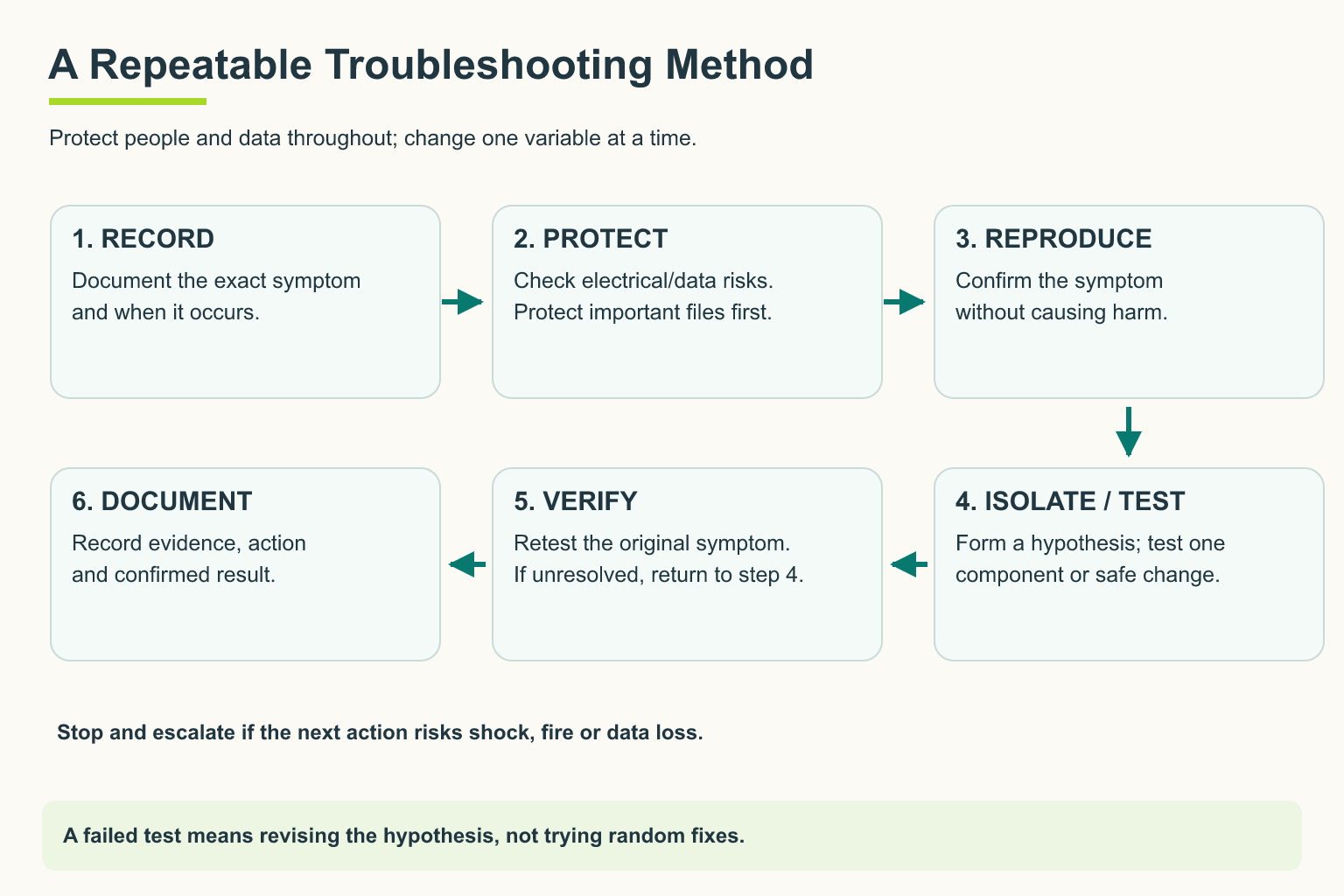
Follow the numbered path; the bottom row runs right to left. Confirm the original symptom is resolved before recording a successful repair.
Open full-size illustration ↗- Define the symptom. Choose a task you can repeat.
- Check the simple explanations. Power, connections, selected device and visible messages often matter.
- Form a specific guess. For example: “This job may be going to the wrong printer.”
- Test one thing. Select the intended printer and send a harmless test page.
- Check the original task again. Has the problem actually gone?
- Record the result. Include changes and anything still unresolved.
Protect work before restarting or changing configuration. If you don't know how to undo a change, pause before making it.
Try it: the silent laptop
A laptop plays video but no sound. Other applications are silent too. List three checks before reinstalling anything.
Possible answer: check mute/volume, the chosen output device and whether headphones or Bluetooth audio are selected. These test specific explanations without major changes.
Quick check
- Why avoid making five changes at once?
- What proves a fix better: the original task working again or a guess sounding convincing?
Show answers and explanation
- You can't tell which change helped or caused a new issue.
- Repeatable success at the original task, with any remaining limitations recorded.
Ready to move on?
Finish the activity and check your answers, then mark this lesson complete. You can come back and review it at any time.