
Computer Does Not Power On
Course: PC & Laptop Troubleshooting · Lesson 2 of 20 · Reading time: about 2 minutes, plus the activity
You press the power button and nothing seems to happen. First separate no signs of power from power present but no picture. Those lead to different checks.
Before you start
Beginner · Guided practice
Lesson format: Guided browser practice
Helpful preparation
Review these topics first if they are unfamiliar. You can still open every lesson.
By the end, you should be able to
- Choose safe external checks for a no-power complaint
- Stop for electrical damage or a swollen battery
Look for signs, then follow the external supply
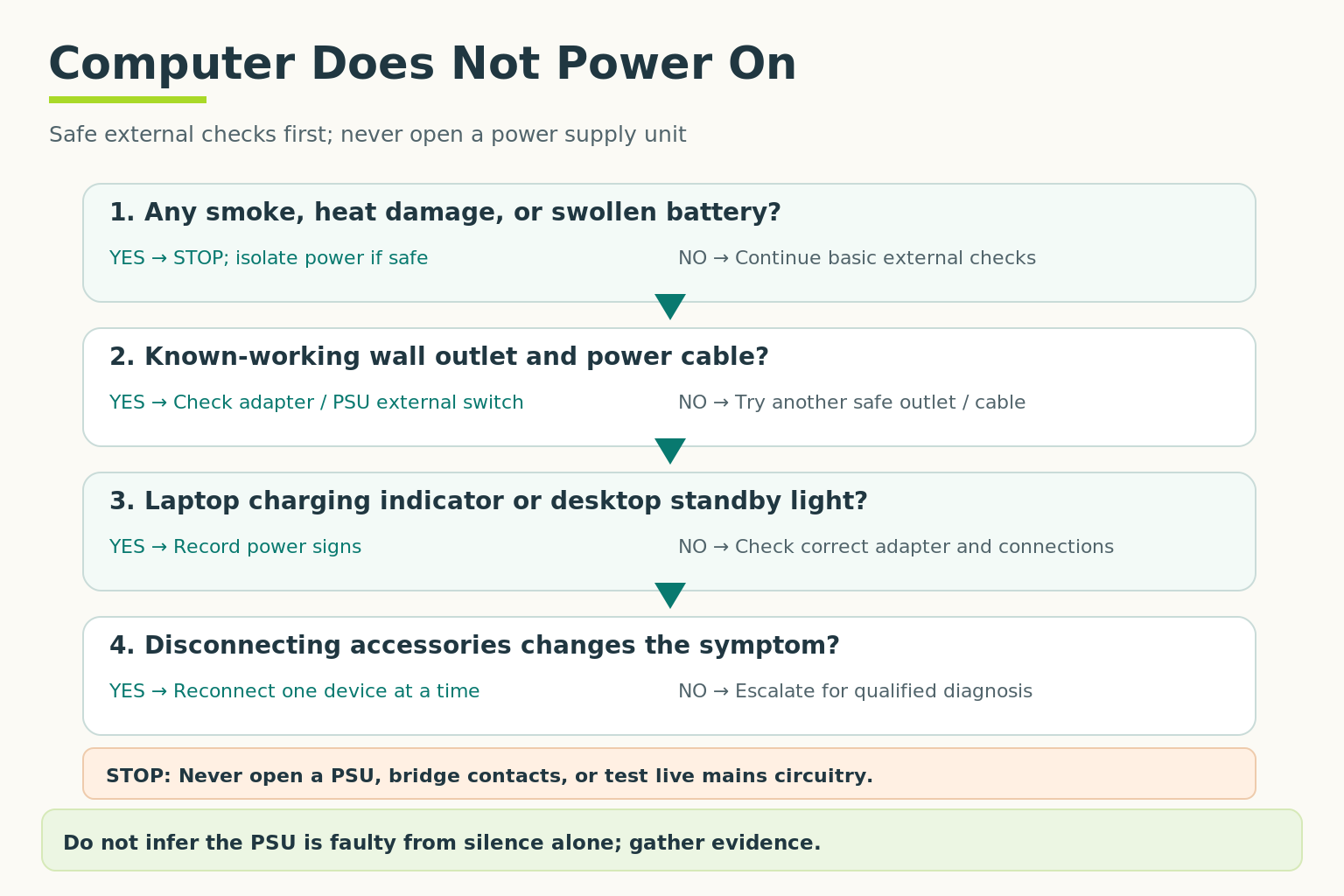
Use this as a check sequence: resolve each branch before moving on. Never open a PSU, bridge contacts or test live mains circuitry. Silence alone does not prove PSU failure.
Open full-size illustration ↗A fan, indicator light, keyboard light or startup sound suggests at least some power is present. A blank monitor alone doesn't mean the whole computer has no power.
For a desktop with no signs:
- Check that its external power cable is fully connected.
- Check the power strip and any external PSU switch.
- Confirm the outlet works using appropriate, known-working equipment—never by probing it.
- Remove obvious external causes such as a switched-off extension strip.
For a laptop, check the adapter, cable, supported charging connection and any charge indicator. Use only a suitable approved adapter. An incompatible charger can fit physically yet fail to supply the needed power.
Know when to stop
A burning smell, damaged cable, liquid damage or swollen battery needs qualified attention. Don't open a PSU or charger, bridge motherboard pins, or bypass protective circuits as a beginner test.
Some models have specific power-reset procedures. Use the manufacturer's exact guide instead of assuming that removing batteries or holding a button is suitable for every device.
Try it: classify the case
Case A: fans spin, monitor says “No signal.” Case B: no lights, no fan, power strip switched off. Which is primarily a no-display case?
Answer: A. B has a clear external power issue to check first.
Case: the quiet desk PC
Fictional guided case: A fictional office desktop has no lights or fans after desks were moved. There is no reported smoke, damage or unusual heat. Choose checks; this case supplies the observations.
Read the case branches and sample service note
What should you establish first?
- Confirm the symptom and ask about electrical damage before external checks — No signs of damage are reported; the desktop has no power indicators.
- Open the power supply to inspect it — This would introduce electrical risk. PSU internals are not a beginner troubleshooting step.
- Reinstall Windows — An OS installation cannot explain the absence of all power indications, and risks data unnecessarily.
Which external check best fits the recent desk move?
- Inspect the intact external power cable and connection without touching damaged/live parts — The equipment-end power plug is visibly loose. The cable and socket appear undamaged.
- Assume the motherboard has failed — There is no component-level evidence yet. Check the simple external supply path first.
- If smoke or damaged wiring appears, stop and escalate — Electrical damage would change the safe next step; no further power tests should be attempted.
In this fictional case, the loose plug is safely reseated with power off. What should happen next?
- Retest startup and confirm the original symptom with the user — The PC starts and reaches sign-in. The user confirms it starts normally on a repeat check.
- Declare the PSU faulty anyway — A successful retest after correcting a loose external connection does not establish PSU failure.
Supported outcome: an external connection was loose; startup works after correction.
Symptom: no lights/fans after desk move. Observation: intact cable loose at equipment end; no damage reported. Action: safely corrected external connection. Result: reached sign-in and repeat startup succeeded. No internal component failure diagnosed.
Stop: never open a PSU or test live mains circuitry.
Return to safe external checks or refer the equipment to a qualified technician.
Escalation is appropriate when electrical damage is present.
Record the observed damage and keep the equipment out of use. This path does not identify the failed component.
That choice goes beyond the available evidence. Use Back to choose a relevant safe check.
Quick check
- Does a blank screen prove there is no power?
- Should you open the PSU to inspect it?
Show answers and explanation
- No.
- No; its internal electrical hazards require qualified servicing.
Ready to move on?
Finish the activity and check your answers, then mark this lesson complete. You can come back and review it at any time.