
Computer Powers On but Has No Display
Course: PC & Laptop Troubleshooting · Lesson 3 of 20 · Reading time: about 2 minutes, plus the activity
There is life in the PC—lights or fans—but no usable picture. Work from the outside inward so a wrong monitor input doesn't turn into an unnecessary component replacement.
Before you start
Beginner · Guided practice
Lesson format: Guided browser practice
Helpful preparation
Review these topics first if they are unfamiliar. You can still open every lesson.
- A Systematic Troubleshooting Method
- Graphics Cards and Display Connections
- Understanding POST Beep Codes and Diagnostic LEDs
By the end, you should be able to
- Separate monitor input/cabling from startup diagnosis
- Record a supported result without claiming the computer fully booted
Start with what the monitor says
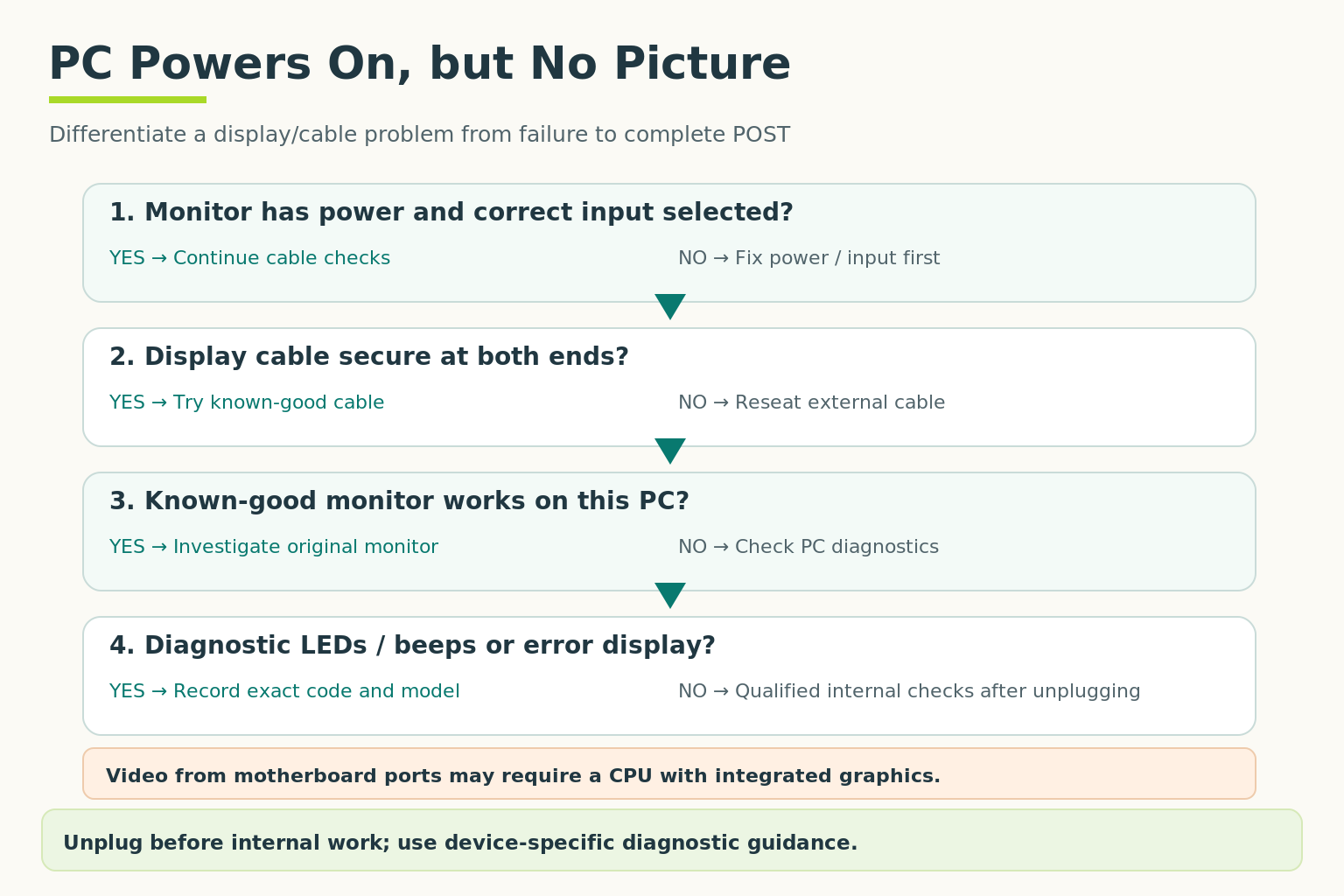
Motherboard video ports may need a CPU with integrated graphics. Follow the device manual; diagnostic codes vary by manufacturer and model.
Open full-size illustration ↗Can its own menu appear? If so, it has enough power to display something. “No signal” points towards the selected input, cable or source signal; it isn't a diagnosis of a failed CPU.
Match the monitor input to the connected cable. Inspect both cable ends and, when suitable equipment is available, compare with a known-working cable or screen. Power down appropriately before reseating connections.
On desktops with a separate graphics card, the monitor commonly connects to the card's ports. A motherboard HDMI socket may not provide output with that processor or configuration.
Then look for startup clues
Record diagnostic lights, beep patterns and whether the system ever shows a manufacturer logo. Interpret indicators using the exact model manual. RAM, graphics and startup firmware problems can all prevent a picture.
On laptops, a brightness setting or display-mode selection may be relevant, but an external screen working doesn't identify every possible internal fault. It simply narrows the problem.
Try it: choose the next check
A PC was moved yesterday. Today its monitor menu works, but it reports “No signal.” What should you investigate before buying RAM?
Expected answer: input selection and the actual cable connections, especially whether the cable was moved to a different PC port.
Case: fans run, screen says “No signal”
Fictional guided case: A fictional desktop is connected by HDMI. The monitor is powered and shows its own “No signal” message. Fan movement alone does not establish that Windows has started.
Read the case branches and sample service note
Which check isolates the display path first?
- Compare the monitor input selection with the connected cable — The cable is HDMI, but the monitor is set to DisplayPort.
- Replace RAM immediately — The monitor input has not yet been checked. No evidence points specifically to RAM.
- Assume the fans prove Windows is healthy — Fans only show that some power is present. They do not prove POST or OS startup completed.
The case operator selects the connected HDMI input. A sign-in screen appears. What next?
- Confirm the picture remains stable and record the input mismatch — The picture remains stable; the user can sign in and reproduce normal display operation.
- Change firmware settings as a precaution — The symptom was isolated without firmware changes. Additional changes would add risk without evidence.
Supported outcome: the monitor was listening to the wrong input.
Symptom: powered monitor shows No signal. Observation: HDMI cable with DisplayPort selected. Action: selected HDMI. Result: stable sign-in picture and user verification. No RAM or motherboard fault diagnosed.
That conclusion is not supported yet. Use Back and choose the check closest to the observed symptom.
Quick check
- Does a monitor menu prove the PC itself has started?
- Why record diagnostic lights?
Show answers and explanation
- No.
- They can identify the startup stage needing further investigation.
Ready to move on?
Finish the activity and check your answers, then mark this lesson complete. You can come back and review it at any time.