
No Internet on One Computer
Course: PC & Laptop Troubleshooting · Lesson 12 of 20 · Reading time: about 2 minutes, plus the activity
The phone browses normally, but the laptop beside it cannot. That comparison is valuable: the connection works for at least one device. Start by finding what differs on the affected computer.
Before you start
Beginner · Guided practice
Lesson format: Guided browser practice
Helpful preparation
Review these topics first if they are unfamiliar. You can still open every lesson.
- A Systematic Troubleshooting Method
- Default Gateway Explained
- DNS: How Names Become Addresses
- Network Troubleshooting with Ping
By the end, you should be able to
- Use other-device and application comparisons to narrow an internet complaint
- Avoid resetting a working shared network without evidence
Narrow the scope
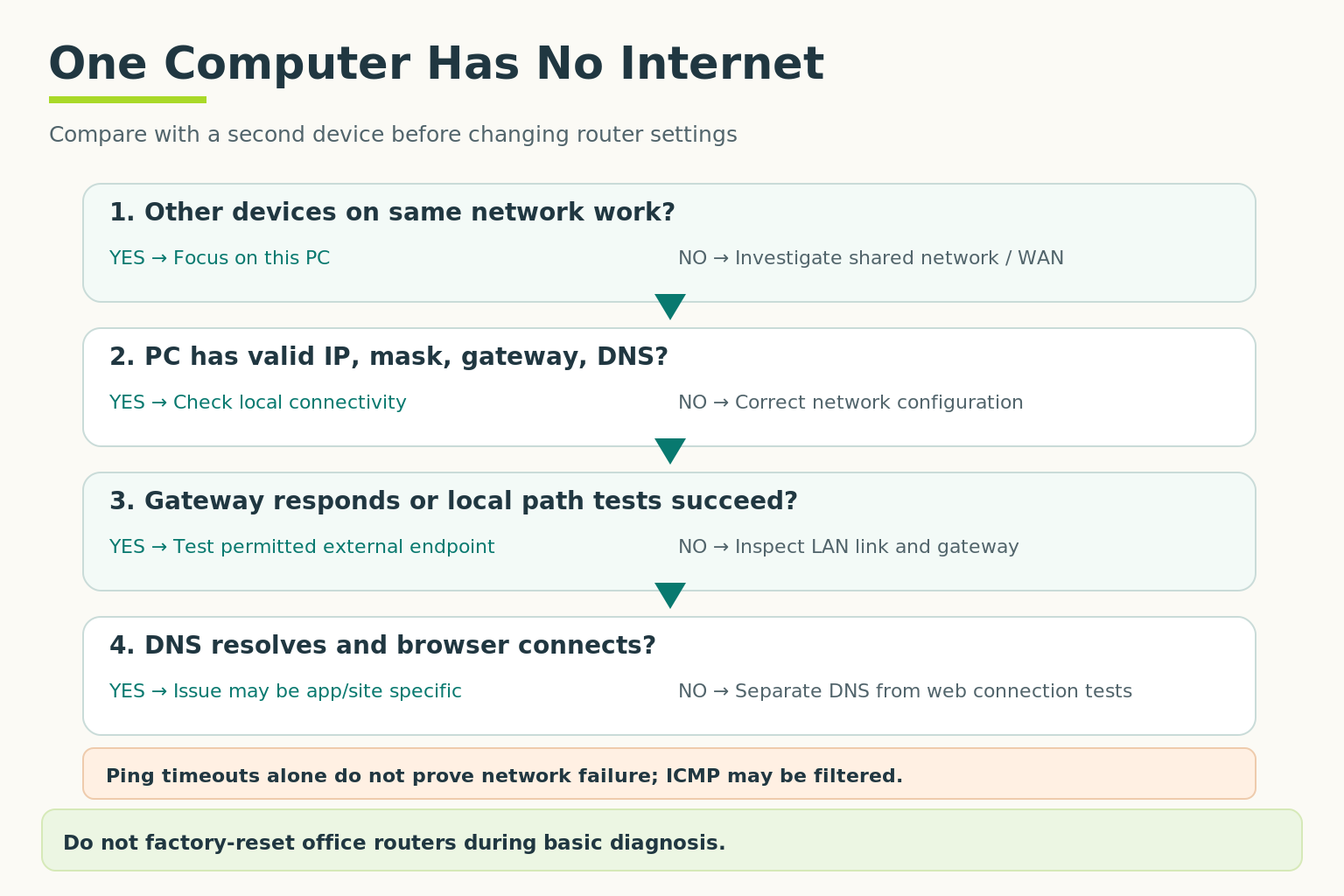
Resolve the indicated branch before continuing. Ping timeouts alone do not prove an outage. Avoid resetting shared office equipment during basic diagnosis.
Open full-size illustration ↗Confirm both devices are using the same intended network; the phone might actually be using mobile data. Then ask whether all applications fail or only one browser or website.
On the affected PC, check:
- Connection: is Wi-Fi joined to the correct network, or is Ethernet linked?
- Address settings: does the active adapter have a plausible IP address, subnet and gateway?
- Name lookup: can DNS resolve a familiar name?
- Application path: is a VPN, proxy or browser-specific setting involved?
Windows' ipconfig /all is a read-only way to inspect adapter settings. It may list several adapters, so choose the relevant one.
Keep the shared network working
Don't reset the office router because one laptop fails. That interrupts everyone and may not touch the cause. Likewise, don't copy another computer's exact IP address; duplicate addresses cause new trouble.
If the laptop is managed by an organization, report evidence before changing proxy, VPN or security settings.
Try it: choose the scope
Every website fails on one browser, but another browser on the same PC works. Where would you start?
Answer: investigate the affected browser's settings, extensions and error, rather than replacing the router.
Case: one browser cannot open websites
Fictional guided case: On a fictional PC, a user reports “the internet is down.” Another PC on the same network opens the requested site. Keep the shared network working while narrowing the scope.
Read the case branches and sample service note
What is a useful low-impact comparison?
- Try the same permitted site in another browser on the affected PC — The same site opens in Browser B but fails in Browser A. A second permitted site also opens in B.
- Factory-reset the office router — The comparison PC works. Resetting shared equipment would disrupt others and discard configuration without evidence.
- Declare the ISP offline — Another PC is reaching the requested site; a whole-site ISP outage is not supported.
What does the comparison support?
- Narrow the investigation to Browser A and its application-specific settings — The case operator reads Browser A’s connection settings: an old manual proxy is configured. Browser B uses the intended connection path.
- Declare the network adapter physically broken — The same PC reaches sites in Browser B. That does not support a general physical adapter failure.
- Delete the browser profile and saved user data — Deleting user data is unnecessary for the next observation and may lose important information.
What is the appropriate action for the proxy finding?
- Confirm the intended proxy policy with the administrator before an authorized correction and retest — The administrator confirms this old proxy is not required and authorizes correction. Both permitted sites now open in A, and the user confirms access.
- Disable every security feature — The finding concerns one connection setting. Removing protections is neither required nor supported.
Supported outcome: a stale browser-specific proxy setting caused this fictional symptom.
Symptom: sites fail in Browser A. Comparisons: another PC and Browser B succeed. Observation: old manual proxy in A. Action: administrator-confirmed correction. Result: two permitted sites open in A; user verified. Shared router unchanged.
The evidence narrows the scope; it does not justify that diagnosis. Use Back to reconsider.
Stop: this choice would change or remove more than the evidence justifies.
Return to the comparison checks. Protect shared connectivity, user data and the intended security policy.
Quick check
- Why confirm the phone isn't using mobile data?
- Does a single failing laptop prove a provider outage?
Show answers and explanation
- Otherwise the comparison uses different connections.
- No; start with the affected device and scope.
Ready to move on?
Finish the activity and check your answers, then mark this lesson complete. You can come back and review it at any time.