
Slow Windows Performance
Course: PC & Laptop Troubleshooting · Lesson 9 of 20 · Reading time: about 2 minutes, plus the activity
If Windows feels sluggish, choose one task to investigate: signing in, opening an application or switching between windows. A clear example gives you something to measure after a change.
Before you start
Beginner · Build on the basics
Lesson format: Explanation and activity
Helpful preparation
Review these topics first if they are unfamiliar. You can still open every lesson.
By the end, you should be able to
- Observe resource use during the reported delay
- Compare a safe change against a baseline
Watch the machine during the delay
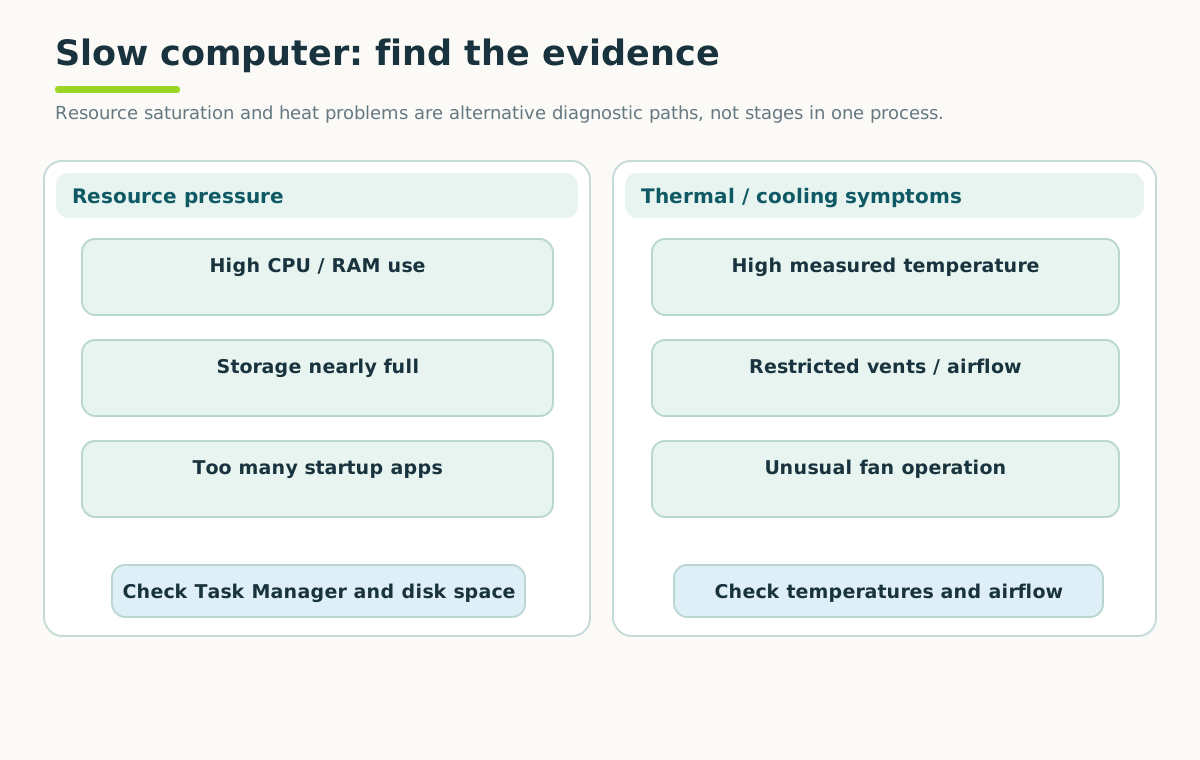
These are clues rather than diagnoses. Observe the machine during the delay, make one safe change and retest; high CPU use does not prove malware.
Open full-size illustration ↗Open Task Manager with Ctrl + Shift + Esc. The Processes view shows activity by application; Performance shows resources such as CPU, memory and storage. A high reading can be normal while work is happening. Look for a pattern that matches the delay.
For example, several large applications may nearly fill RAM. A scheduled update may keep the drive busy. An application can also wait for a remote server while local resource use stays modest.
Make the easy checks useful
Save work, close applications you recognize and aren't using, and retry the same task. Check available storage and whether a normal update is still completing. Review startup applications carefully; disabling unfamiliar entries can remove useful functionality.
Avoid registry cleaners, random speed-up tools and switching off protection services. They can create problems without explaining the original delay. If storage reports errors, protect files before testing performance further.
Try it: before and after
Record how a familiar application behaves with many ordinary programs open. Close unused programs and repeat. Note both the experience and the resource readings; don't invent exact timings if you didn't measure them.
Quick check
- Does every slowdown need a faster CPU?
- Why use the same task before and after a change?
Show answers and explanation
- No; memory, storage, software and networks can limit work.
- It makes the comparison meaningful.
Ready to move on?
Finish the activity and check your answers, then mark this lesson complete. You can come back and review it at any time.