
PowerShell for Beginners
Course: Windows & Server Administration · Lesson 13 of 19 · Reading time: about 2 minutes, plus the activity
PowerShell lets you ask a computer questions and automate tasks using commands. You don't need to start with a long script. Begin with short commands that show information without changing the system.
Before you start
Beginner · Build on the basics
Lesson format: Concepts and selected tested lab practice
Helpful preparation
Review these topics first if they are unfamiliar. You can still open every lesson.
By the end, you should be able to
- Read a simple Verb-Noun command and object pipeline
- Explain the effect of a read-only example before running it
Read the name like a sentence
A PowerShell command called a cmdlet commonly uses a Verb-Noun name. Get-Process gets information about running processes. Get-Service gets service information. A service is a program designed to provide background functionality.
Open PowerShell normally; these examples don't require an elevated administrator session:
Get-Date
Get-Process | Select-Object -First 5 -Property ProcessName, Id
Get-Help Get-Service
Get-Date displays the date and time. The second command gets process objects and selects the first five, showing their names and IDs. The pipe character, |, sends one command's output into the next. It doesn't mean “or” here.
PowerShell usually passes objects—structured information with properties—rather than only lines of text. ProcessName and Id are properties you can select.
Read before running
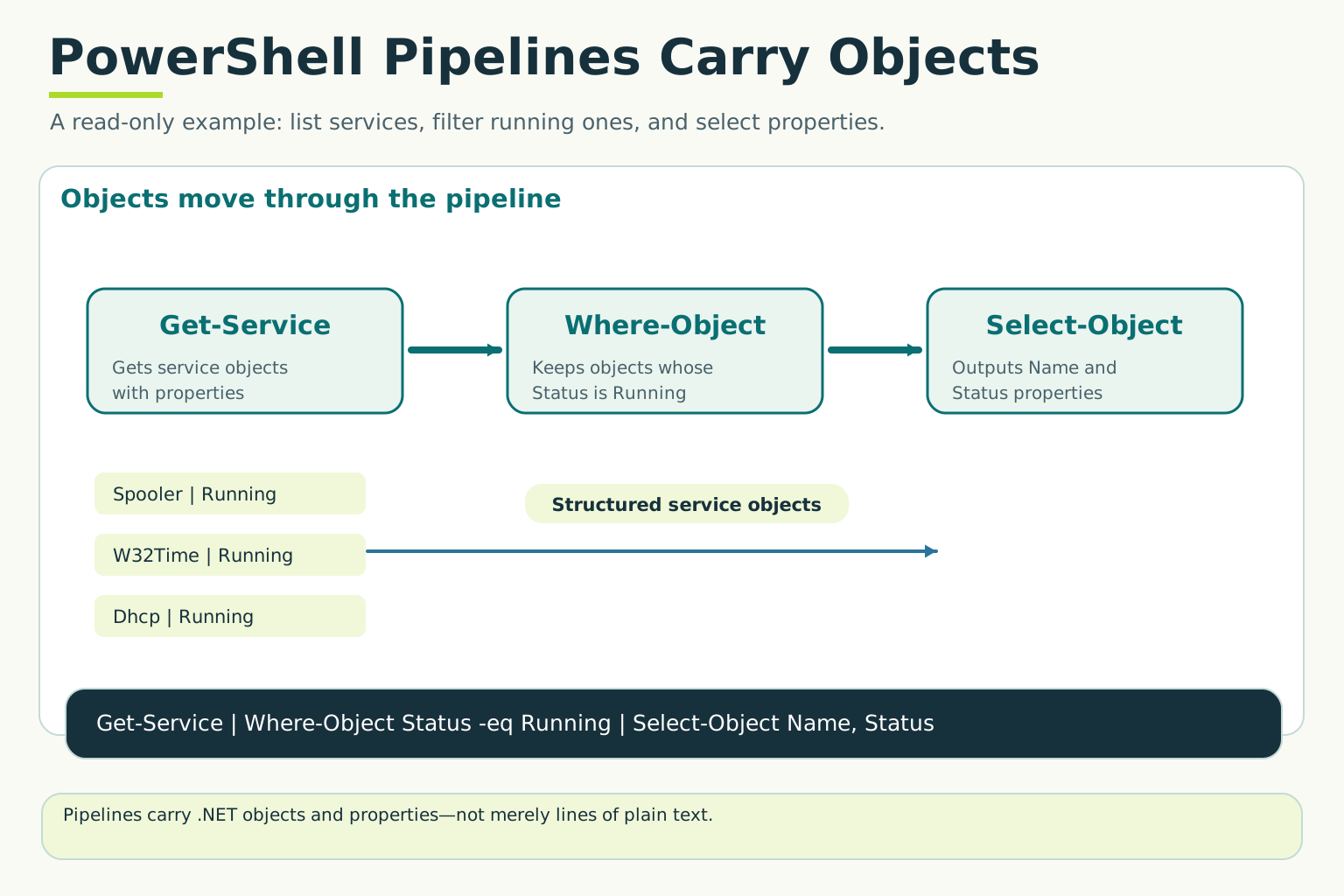
Read-only example: Get-Service | Where-Object Status -eq Running | Select-Object Name, Status. Service names and states are illustrative and vary by machine; this drawing is not captured command output. Formatted text is a view of object properties.
Open full-size illustration ↗Get-Help explains command usage; the detail available depends on installed help. Commands with names such as Remove, Stop or Set can change things. Never paste an unfamiliar script just because it promises a quick fix.
Try it: explain your output
Run Get-Date and the five-process example on your own PC. Identify a process name and its ID. Leave running processes alone; observing them is the exercise.
Try the tested lab
Observed in our isolated lab · 16 November 2026 · Real Windows screenshots
A real pipeline: find, hash, display
Goal: read a short pipeline and interpret actual output. Start with the tiny file-restore exercise, which creates the three files safely.
Get-ChildItem 'C:\CyberdyneLab\RestorePractice\*\Practice.txt' | Get-FileHash -Algorithm SHA256 | Format-List Path,Hash
Read it like an assembly line:
- Get-ChildItem finds Practice.txt in the immediate child folders.
- Get-FileHash receives each file and computes its SHA-256 content hash.
- Format-List displays Path and Hash so we can compare the full values.
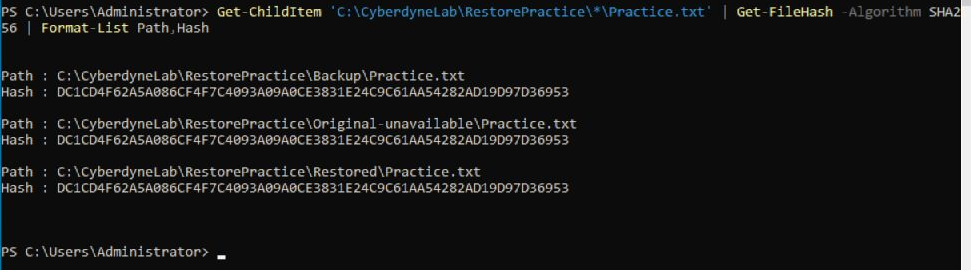
All three actual hashes matched in our run. The names differed because the files were in Backup, Original-unavailable and Restored, but the contents matched. This command reads files; it does not make a backup or restore one. Run it only after creating the dummy files, and don't substitute a sensitive directory for a teaching screenshot.
Try explaining the output: how many files were found, which folders contain them, and what would a different hash mean? Missing output is not success; check the path and hidden file extensions. A file accidentally named Practice.txt.txt will not match this search.
Quick check
- What does the pipe send onward?
- Does Get-Process terminate the listed applications?
Show answers and explanation
- Output from the preceding command.
- No; it retrieves information about them.
Read further
Microsoft: PowerShell pipelines
Ready to move on?
Finish the activity and check your answers, then mark this lesson complete. You can come back and review it at any time.