Backup and Restore Testing
Course: PC & Laptop Troubleshooting · Lesson 19 of 20 · Reading time: about 2 minutes, plus the activity
“The backup completed” sounds reassuring. The question that matters is: “Can we get the right files back?” A restore test turns that hope into evidence.
Before you start
Beginner · Build on the basics
Lesson format: Concepts and selected tested lab practice
Helpful preparation
Review these topics first if they are unfamiliar. You can still open every lesson.
By the end, you should be able to
- Define what a successful restore must recover
- Test a sample restore without overwriting its original
Decide what success means
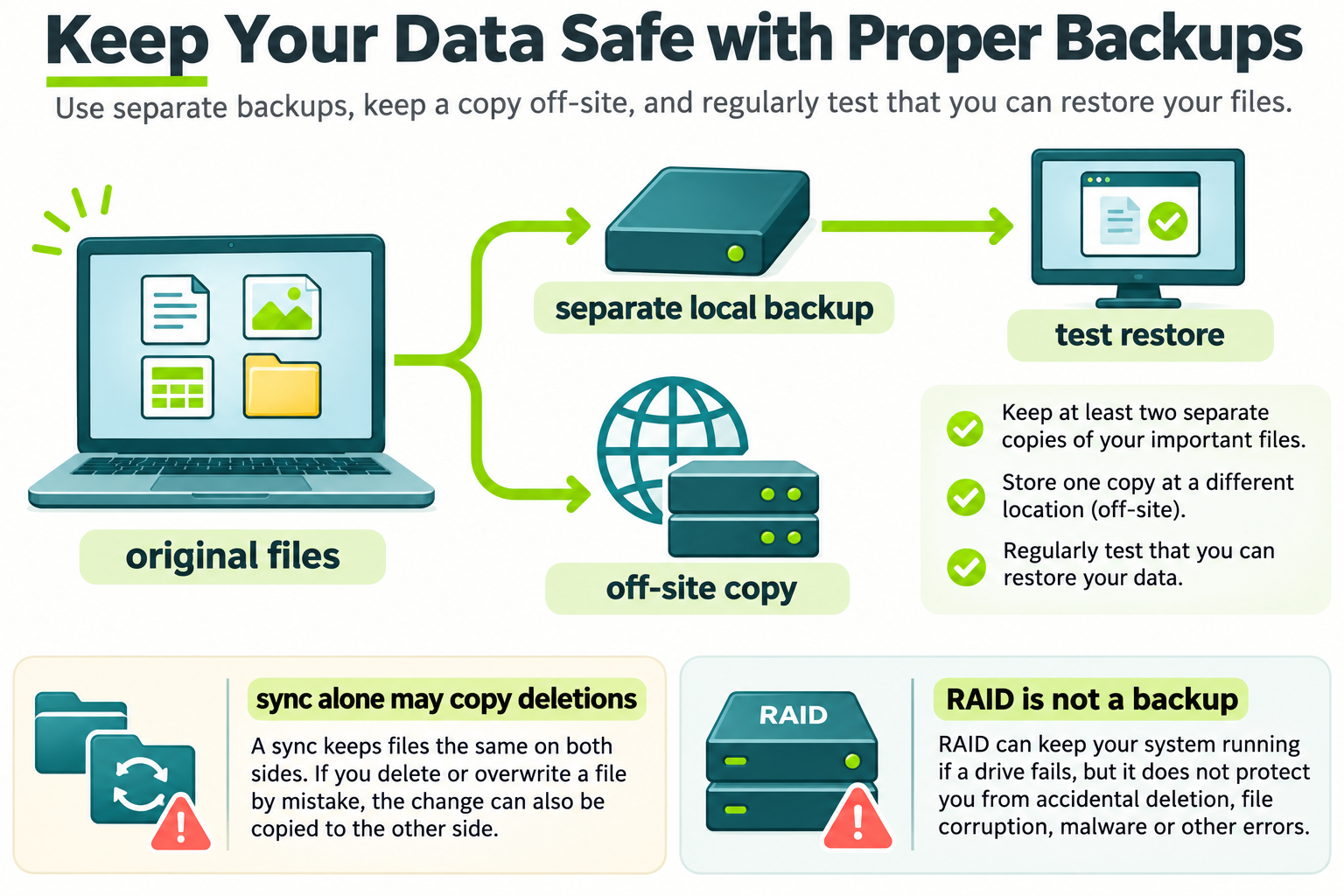
A backup is useful when you can recover the files you need. Restore a sample to a separate location and open it without overwriting the original.
Open full-size illustration ↗A backup is a recoverable copy. A restore brings data back from that copy. A useful test checks the file contents, the chosen version and whether the intended person can open them.
Backup design also includes two planning questions: how much recent work could be lost, and how long recovery may take. An overnight backup might leave today's unsaved changes outside its protection.
Try it: restore without risking the original
- Original practice file
Keep it untouched.
- Backup copy
Use the intended backup method.
- Different restore folder
Restore without overwriting the original.
- Open and compare
Verify the contents and chosen version.
A successful backup notification is not the same as a successful restore.
- Create a harmless practice document with a sentence and a date.
- Back it up using the intended method.
- Restore into a different folder, leaving the original untouched.
- Open the restored file and compare its contents.
- Record which backup version was used and whether anything failed.
For business systems, applications, permissions and dependencies may require additional testing. A readable text file isn't proof that a complete database or server can recover.
Avoid the mirror trap
Synchronization can copy deletions and corruption, depending on its settings. Version history and independent protected copies matter. A permanently connected writable backup can also be vulnerable to the same malware or account mistake.
Check your result: the restored practice file should open from the different restore folder and contain the saved sentence and date. Keep both copies. A successful copy on the same disk demonstrates the steps, but does not protect against that disk failing.
Try the tested lab
Observed in our isolated lab · 16 November 2026 · Real Windows screenshots
Get the file back, then check it
Goal: practise a safe restoration sequence using one tiny text file. Allow 15 minutes. We tested this on Windows Server 2022, but the folder-copy steps are ordinary file operations. Use dummy data and keep the original.
Important limit: all three folders in this exercise are on the same C: disk. They teach copy/restore mechanics; losing that disk could lose every copy. This is not independent backup protection, Windows Server Backup, system-state recovery or AD disaster recovery.
- Create C:\CyberdyneLab\RestorePractice, with child folders Original, Backup and Restored.
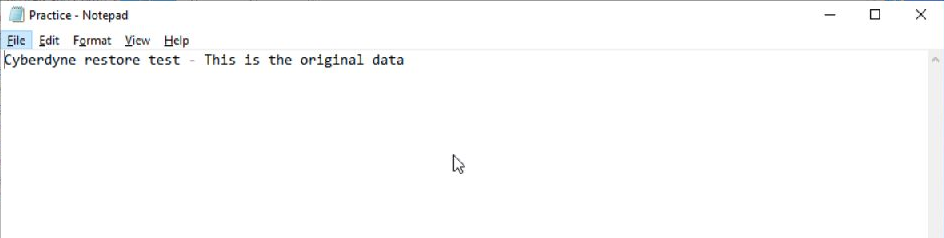
- In Original create Practice.txt with a short dummy sentence, then save and close it. Our actual 52-byte file says: “Cyberdyne restore test - This is the original data”.
- Copy Practice.txt from Original to Backup. Check it is present.
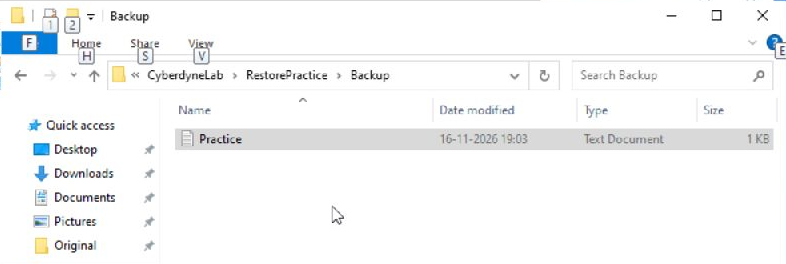
- Rename Original to Original-unavailable, retaining the file inside. This simulates the original path being unavailable without deleting our comparison copy.
- Copy Practice.txt from Backup into Restored. Open that restored copy and read it.
Compare contents, not just filenames
On the practice server run this read-only command in PowerShell:
Get-ChildItem 'C:\CyberdyneLab\RestorePractice\*\Practice.txt' | Get-FileHash -Algorithm SHA256 | Format-List Path,Hash
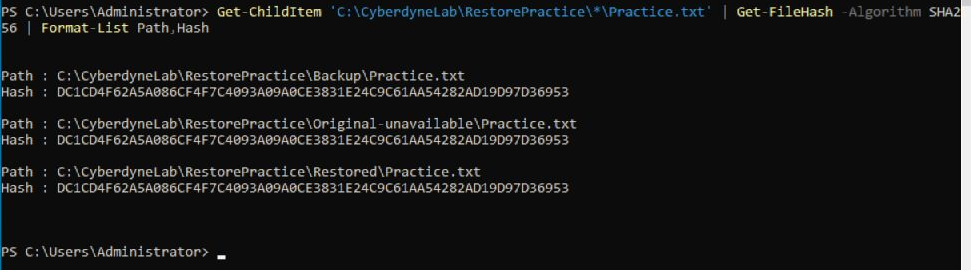
Our result: exactly three paths appeared—Backup, Original-unavailable and Restored—and all three SHA-256 hashes matched. The restored file also opened correctly. That is strong evidence that these copies have identical contents, not just matching names.
If a path is missing or a hash differs, don't label the exercise successful. Check that the original was saved before copying, compare the displayed paths and confirm the restored file came from Backup. Keep failed results for investigation rather than overwriting them.
Limits and next steps: we did not test metadata or ACL restoration, version retention, automation, corrupted-data recovery, an independent backup destination or whole-server recovery. A real backup plan needs a separate failure boundary and its own restore test. The practice folders remain in place; no deletion was needed.
Practice questions and explanations
- Why restore into a different folder? It protects the original and gives us a clear comparison target.
- What do matching hashes tell us here? The observed file contents match. They don't verify permissions or application/server recovery.
- Is the Backup folder on C: independent protection? No. A failure affecting that disk could affect all three folders.
Reference: Microsoft Get-FileHash.
Quick check
- Why restore to a separate location during a test?
- Does one restored document prove every business service is recoverable?
Show answers and explanation
- It protects the original and avoids accidental overwrite.
- No; test the recovery needs of each relevant service.
Ready to move on?
Finish the activity and check your answers, then mark this lesson complete. You can come back and review it at any time.