
BitLocker and Encrypted Drives
Course: PC & Laptop Troubleshooting · Lesson 18 of 20 · Reading time: about 2 minutes, plus the activity
Encryption makes stored data unreadable without the right key. BitLocker is a Windows drive-encryption feature. If a laptop is lost, encryption can help protect its files from someone reading the drive elsewhere.
Before you start
Beginner · Build on the basics
Lesson format: Explanation and activity
Helpful preparation
Review these topics first if they are unfamiliar. You can still open every lesson.
By the end, you should be able to
- Explain why BitLocker recovery may appear
- Protect legitimate recovery information and avoid erase-first actions
Why recovery sometimes appears
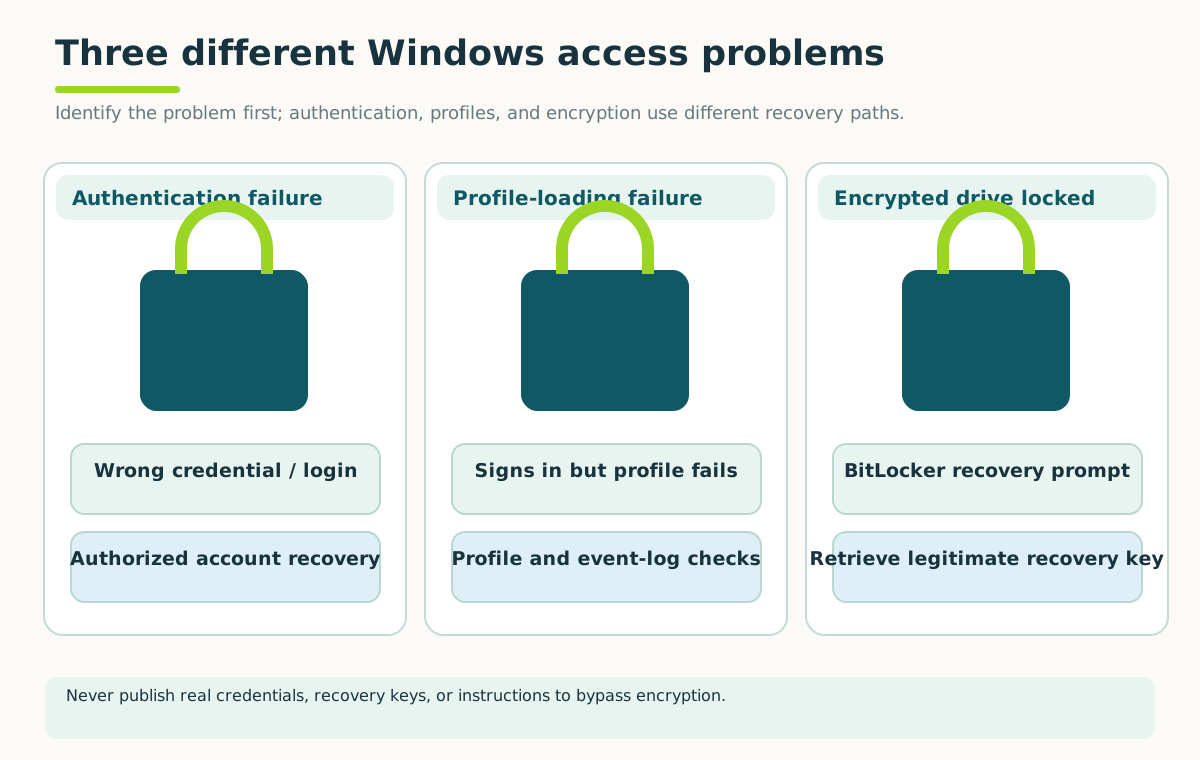
Record the exact message and protect the original data. Account recovery does not bypass drive encryption; never publish credentials or recovery keys.
Open full-size illustration ↗A protected system may unlock through its normal startup checks, often involving a security component called the Trusted Platform Module, or TPM. Some hardware or startup changes can cause it to request recovery information instead.
A BitLocker recovery key is sensitive access information, commonly presented as a 48-digit recovery password. The prompt may show a key identifier to help the legitimate owner match the correct stored key.
The key may be held in the owner's Microsoft account, an organization's management system or another location chosen during setup. Use Microsoft's official recovery guidance and the organization's help desk where applicable.
Don't erase your way past the question
- Encrypted drive
Stores protected data.
- Key identifier
Helps match the correct recovery information.
- Recovery key
Sensitive information used for authorized recovery.
Do not put an actual recovery key in a screenshot or worksheet. Formatting is not a way to recover encrypted files.
Clearing the TPM, formatting the drive or reinstalling Windows doesn't recover the encrypted files. It can make the situation worse or destroy data. There is no universal support code that unlocks every BitLocker drive.
Backups and authorized recovery-key access should be prepared before firmware or major hardware changes.
Try it: prepare, without exposing the key
Write a recovery plan naming where the owner stores recovery information and who may access it. Do not copy the actual key into a lesson worksheet, screenshot or public support ticket.
Quick check
- Is a key identifier the same as the full recovery key?
- Does formatting decrypt and preserve existing files?
Show answers and explanation
- No; it helps identify the matching key.
- No; formatting is not file recovery.
Read further
Microsoft: find your BitLocker recovery key
Ready to move on?
Finish the activity and check your answers, then mark this lesson complete. You can come back and review it at any time.