
Printer Not Printing
Course: PC & Laptop Troubleshooting · Lesson 14 of 20 · Reading time: about 2 minutes, plus the activity
You click Print, hear nothing and click it five more times. Now there may be six jobs waiting! Before sending another copy, find where the first job went.
Before you start
Beginner · Guided practice
Lesson format: Guided browser practice
Helpful preparation
Review these topics first if they are unfamiliar. You can still open every lesson.
By the end, you should be able to
- Follow a print job from application to printer
- Use queue, connection and test-page evidence to narrow the fault
Follow the document
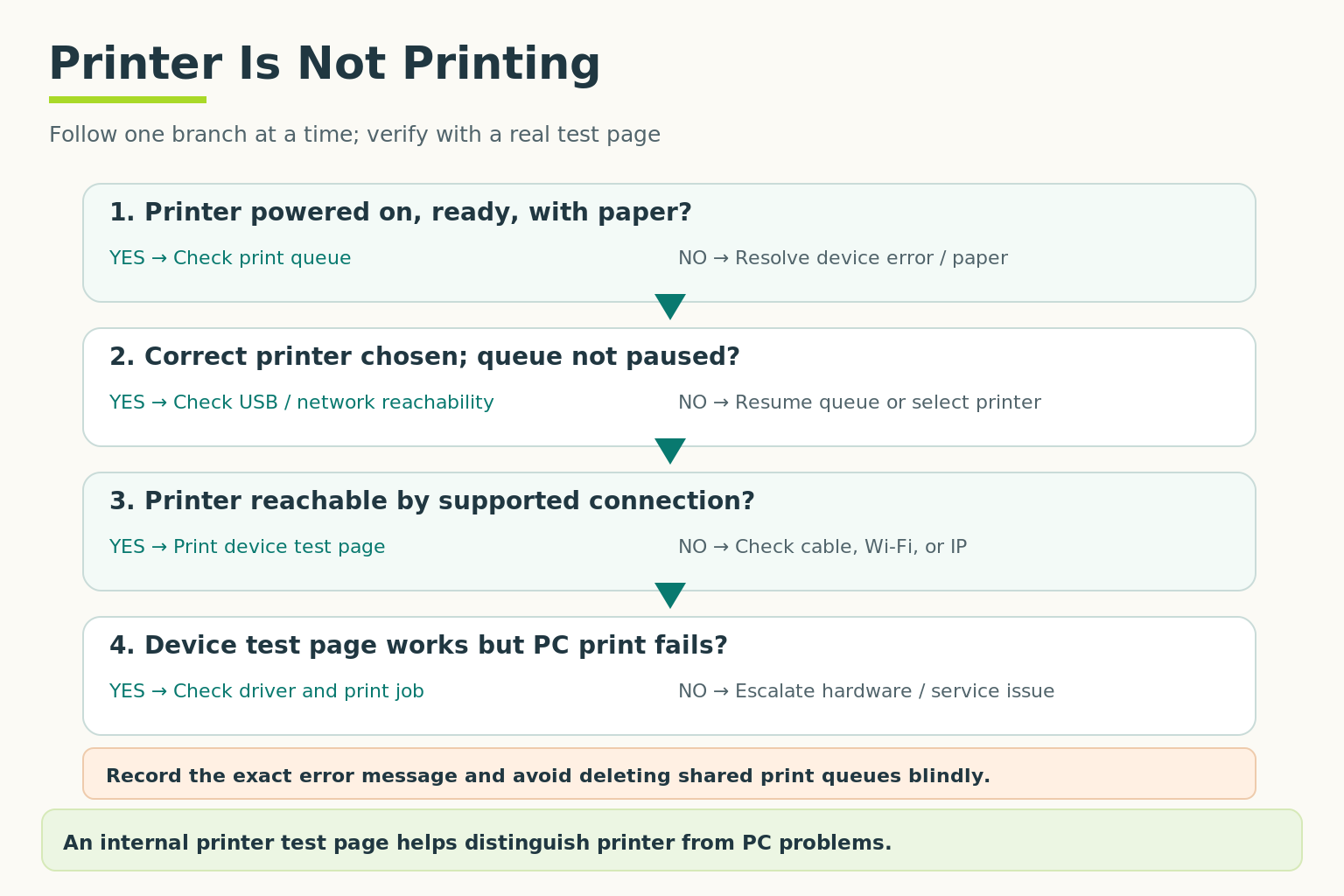
Resolve one branch at a time and record the exact error. A device-generated test page helps separate printer problems from the PC or connection; it is not the same as a Windows test page.
Open full-size illustration ↗- Check the destination. Did the application select the physical printer or a PDF printer?
- Look at the printer. Is it on, with paper and no visible jam or supply warning?
- Check the connection. Is USB connected, or is the network printer on the expected network?
- Inspect the print queue. Is the job paused, waiting behind an error or going to an offline device?
- Compare scope. Can another application or authorized user print a harmless test page?
A print queue holds jobs waiting for processing. The print spooler is the service involved in managing those jobs on Windows. A stuck queue isn't automatically proof of a broken printer.
Don't clear everyone's work casually
Cancelling jobs or restarting a shared print service can affect other users. Confirm ownership before doing it. Follow the printer's manual for a jam; don't pull forcefully against the mechanism or touch hot internal parts.
Try it: catch the wrong destination
An application shows “Microsoft Print to PDF,” while the user expects paper from the office printer. What should you check first?
Answer: select the intended physical printer and verify its name before sending one test page.
Case: the document went to the wrong printer
Fictional guided case: A fictional user prints a document, but the nearby printer stays quiet. It is powered on, ready and has paper. Other users can print to it.
Read the case branches and sample service note
What should you inspect first on this PC?
- Read the selected printer and the user’s queue — The application selected “Upstairs Printer”; the user expected “Accounts Printer” beside the desk.
- Clear everyone’s print jobs — Other users are printing. Clearing shared jobs would discard their work without evidence.
- Replace the nearby printer — The nearby device is ready and works for others. Replacement is not supported by the observations.
What is the next controlled test?
- Select the intended Accounts Printer and print one permitted sample page — The sample page appears on Accounts Printer. No other users’ jobs were changed.
- Reinstall all printer drivers — The selected destination already explains why the nearby printer remained quiet. Test the correct destination first.
How should the case be closed?
- Confirm the destination with the user and record what printed where — The user confirms the intended device. Any unintended job is handled with its owner rather than clearing a shared queue.
- Write “network fixed” without testing — Nothing established a network fault. The report should record the observed destination mismatch and test result.
Supported outcome: the application had selected a different printer.
Symptom: nearby printer remained quiet. Observation: Upstairs Printer selected instead of Accounts Printer; nearby printer works for others. Action: selected intended destination and sent one sample. Result: page printed and user confirmed. Shared queues preserved.
Choose a next step that tests the specific observation. Use Back to reconsider.
Stop: do not discard other users’ print jobs during a single-user diagnosis.
Inspect the selected destination and the affected user’s job before considering shared-system changes.
Quick check
- Does clicking Print repeatedly fix the first job?
- Why compare another application?
Show answers and explanation
- Usually no; it may create duplicates.
- It helps distinguish an application-specific issue from a broader printer problem.
Ready to move on?
Finish the activity and check your answers, then mark this lesson complete. You can come back and review it at any time.