
USB Devices Not Recognized
Course: PC & Laptop Troubleshooting · Lesson 15 of 20 · Reading time: about 2 minutes, plus the activity
A mouse, webcam or external drive can fail to appear for different reasons. USB carries data and may supply power, but the connector fitting doesn't prove every required capability is present.
Before you start
Beginner · Build on the basics
Lesson format: Explanation and activity
Helpful preparation
Review these topics first if they are unfamiliar. You can still open every lesson.
By the end, you should be able to
- Test one cable/port/device variable at a time
- Distinguish USB detection from readable storage contents
Change one part of the chain
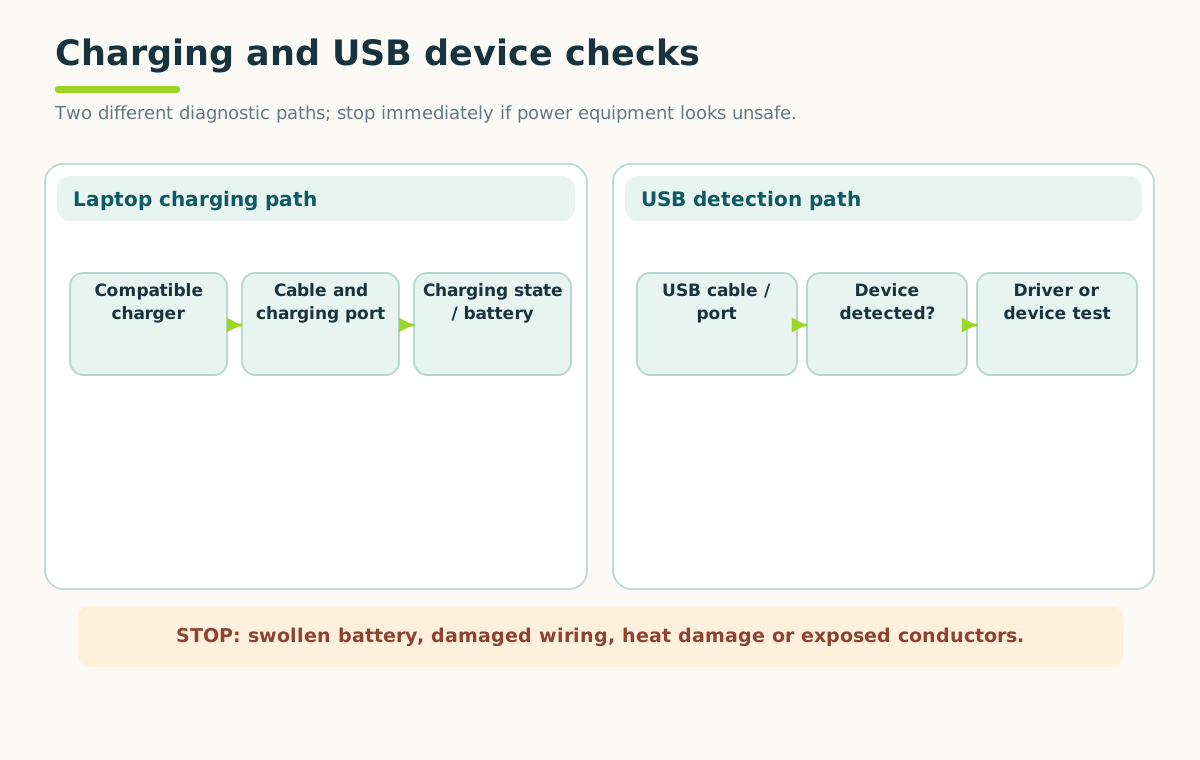
Check charger ratings and supported USB-C power/data features. Never open a battery pack or keep using damaged power equipment.
Open full-size illustration ↗For a simple peripheral, check the plug, a known-working compatible cable and another suitable port. If it uses a hub, compare a direct connection where appropriate. Some cables provide charging without the needed data function.
External drives can need more power than a hub supplies. A storage device also might be detected by Windows without appearing as a usable volume in File Explorer.
Detection and readable files are different
- Connection
A suitable port, cable and enough power.
- Device detection
The operating system recognizes hardware.
- Usable data
A storage volume and its files can be read.
Charging does not prove data works. Never format a drive with needed files just to make it appear.
Device Manager can show whether Windows recognizes the hardware. Disk Management can show storage layout, but its initialize, format and partition actions can alter data. Don't accept a formatting prompt for a drive containing needed files just to make it appear.
For removable storage, use the supported safe-eject process before disconnecting after writes. For a drive with errors or disappearing data, protect the content before repeated testing.
Try it: cable detective
A phone charges through one cable but won't transfer files. A known data-capable cable works. What did the comparison narrow down?
Answer: the first cable's capability or condition, rather than proving the phone's USB hardware is broken.
Quick check
- Does charging prove USB data works?
- Should you format an unreadable drive with irreplaceable files as a first test?
Show answers and explanation
- No.
- No; preserve the data and investigate recovery options first.
Ready to move on?
Finish the activity and check your answers, then mark this lesson complete. You can come back and review it at any time.